# How to Set Up a Conference Call: A Practical Guide
To run a good conference call, you need to get four things right before anyone clicks "Join": a sharp agenda, the right platform, a clear invitation, and a quick tech check.
Getting these steps sorted is the difference between a productive meeting and a frustrating waste of time. It ensures people know why they’re there and can connect without technical problems.
# Your Pre-Call Checklist
A successful conference call starts with solid prep. Many meetings go off the rails because of simple things that could have been handled beforehand—fuzzy agendas, missing links, and last-minute tech scrambles.
With remote and hybrid work now standard, conference call services are a major industry. The market is projected to grow from USD 9.4 billion in 2025 to USD 17.3 billion by 2034, showing how much we rely on these tools.
# Define a Sharp Agenda
Before you open any software, know the point of the meeting. What do you need to accomplish? A vague agenda like "Project Update" leads to rambling. "Finalize Q3 Marketing Budget and Assign Key Tasks" provides focus.
A solid agenda should include:
- Key discussion points: Frame them as 2-4 questions that need answers.
- Time allocation: Pencil in a few minutes for each topic to keep the meeting on schedule.
- Required participants: Only invite people who need to contribute. If their presence is optional, tell them so.
This planning shows you respect everyone's time and keeps the conversation on track.
This flow—Agenda, Platform, Invite, Test—is the core sequence. Get this right, and you're halfway to a successful call.
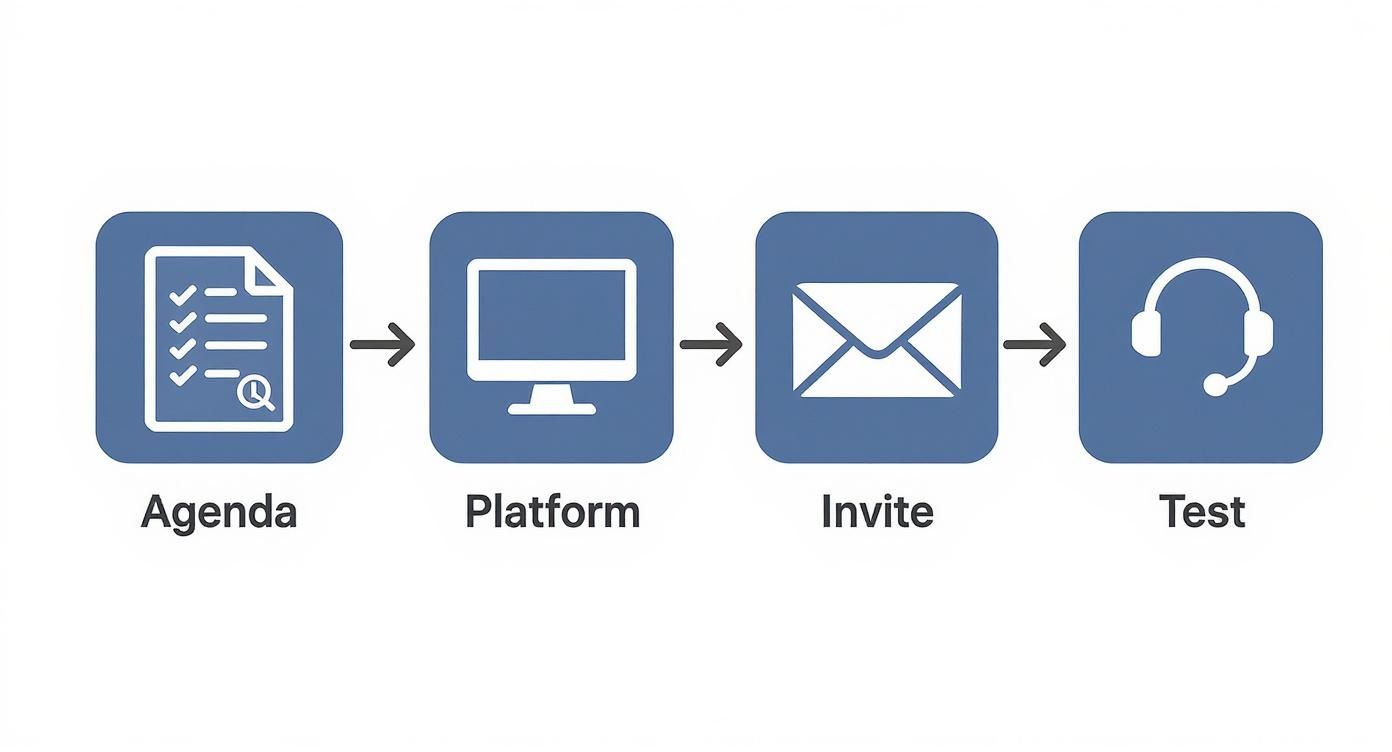
Think of it like building blocks. Each step supports the next.
A quick summary of these prep steps can make a difference.
# Key Pre-Call Preparation Steps
This table breaks down the actions to take before any call. Mastering these basics will make your meetings more professional.
| Action Item | Why It Matters | Quick Tip |
|---|---|---|
| Set a Clear Goal | Prevents unfocused discussion. | Write the goal as a single, actionable sentence. |
| Create a Timed Agenda | Keeps the meeting on track. | Allocate time blocks for each topic and assign a lead. |
| Invite Only Essential People | Ensures everyone present is engaged. | If someone is "optional," let them know they can skip. |
| Send a Detailed Invitation | Eliminates confusion and late arrivals. | Include the link, dial-in, and agenda in one email. |
| Test Your Tech | Avoids technical glitches. | Do a 30-second check of your mic, camera, and connection. |
Consistently following these steps turns meeting prep into a habit for productivity.
# Send a Clear and Complete Invitation
Your meeting invitation is the single source of truth. A bad one causes chaos and a flurry of "where's the link?" emails. Make sure every invite has all the details, laid out for easy scanning.
If you’re coordinating across multiple locations, use a dedicated time zone meeting planner (opens new window). It removes the guesswork.
A great meeting invitation anticipates questions. It should be so clear that nobody needs to email you back asking for the link or dial-in number.
Every invite needs the direct join link, any meeting IDs or passcodes, and a dial-in phone number as a backup. For more on this, check our guide to pre-meeting success (opens new window).
Finally, attach the agenda and any documents people need to review beforehand. Sending materials ahead of time means you can spend the meeting discussing, not just informing.
# Getting Your Call Started on Zoom, Teams, Meet, and Webex
Every platform is slightly different. You don’t need to be an expert on all of them, but knowing the quickest way to start a meeting on each will save you time.
The goal is to get your call started and get people in it. Here’s the fastest way to do that on the big four.
# Starting a Call in Zoom
Zoom (opens new window) lets you start a meeting now or schedule one for later.
- For an instant meeting: Open the Zoom app and click the orange "New Meeting" button. Your call is live. To invite people, click the "Participants" icon, then "Invite," and copy the link.
- For a scheduled meeting: Click the blue "Schedule" button. This opens a window where you can set the time, date, and security options like a passcode. Once you save it, Zoom generates a complete invitation to paste into a calendar event.
For most daily chats, you'll probably just use the "New Meeting" button. It’s quick.
# Using Microsoft Teams for Meetings
Microsoft Teams (opens new window) is all about context. Where you start a call depends on who you need to talk to.
For a formal, planned meeting, use the Calendar tab inside Teams to send a proper invitation. For more spontaneous chats, you have a couple of options.
A channel meeting is open for the whole team to see and join, which is good for transparency. A private chat call is just for the people involved—better for a focused, one-on-one conversation.
To talk with a specific person or group, go to your private chat with them and click the video or phone icon in the top-right corner.
If the conversation is for an entire project, go into that team's channel and hit the "Meet" button up top. For a deeper look, see our guide to the Microsoft Teams setup (opens new window).
# Creating a Google Meet Call
Google Meet (opens new window) is built into Gmail and Google Calendar, which makes starting a call simple.
If you’re in Google Calendar, create a new event. You’ll see a blue button that says "Add Google Meet video conferencing." Click it, and a meeting link is automatically generated and added to the invite.
From your inbox, look for the "Meet" section in the left sidebar of Gmail. Clicking "New meeting" will generate a shareable link. This is my method for a quick, unscheduled huddle.
# Scheduling with Cisco Webex
Webex (opens new window) has a few ways to start a meeting, mostly through its desktop app or an Outlook plugin.
Inside the app, the "Start a Meeting" button is for instant calls, just like Zoom’s.
For future meetings, clicking "Schedule a Meeting" lets you configure the details. If you work from your email client, the Webex plugin for Outlook is a time-saver. It adds an "Add Webex Meeting" button to your new appointment window, embedding all the join info into the calendar invite.
# Choosing the Right Audio and Video Hardware
Relying on your laptop's built-in microphone and camera is a gamble. One minute you sound fine, the next you’re a muffled voice that’s hard to understand. If you want to run a professional conference call, ditch the default hardware.
A dedicated microphone makes an immediate difference. Your voice becomes clearer, cutting through background noise. The same goes for video—an external webcam gives you a much sharper picture than the tiny lens in your laptop bezel.
# Your First Audio Upgrade: A USB Microphone
If you do one thing to sound better on calls, get an external USB microphone. These are plug-and-play and deliver a huge leap in quality. For a home office, a simple USB mic can make you sound like you're in a studio.
We have a guide on the best microphones you can buy in 2024 (opens new window) with some good options.
Another solid choice is a quality headset. It combines a good microphone with headphones, which solves the audio feedback loop you get when your mic picks up sound from your own speakers.
This push for clearer communication is a big deal. The global conference call services market is on track to hit around USD 8.56 billion by 2025. This shows how much businesses are investing in making remote communication work.
# Audio Hardware Comparison for Conference Calls
To make it easier, here's a breakdown of common audio hardware and their best uses.
| Hardware Type | Best For | Pros | Cons |
|---|---|---|---|
| USB Microphone | Solo professionals in a quiet space. | Excellent audio quality; simple setup. | Can pick up background noise; needs separate speakers. |
| Headset with Mic | Anyone in a noisy environment. | Eliminates echo; isolates you from distractions. | Can be uncomfortable for long calls; "headset hair." |
| Speakerphone | Small rooms with 2-4 people. | Captures audio from multiple speakers. | Audio quality can degrade in larger or echoey rooms. |
| Built-in Laptop Mic | Last-resort backup. | It's free and always there. | Poor audio quality; picks up keyboard noise. |
The goal is to sound clear and professional. A small investment here pays off on every call.
# Upgrading Your Video Feed
Once your audio is set, think about your camera. A dedicated webcam will always be better than your laptop's built-in option, offering better resolution, colors, and low-light performance.
- Positioning is everything: Get the camera at eye level. Looking into the lens creates a more personal connection than looking down.
- Lighting matters: Make sure your main light source is in front of you, not behind. A simple ring light can make a huge difference.
For larger spaces, look at dedicated conference cameras. These have wider fields of view and are often paired with speakerphones designed to capture audio from multiple people. To get the sound right in those rooms, read up on choosing the right amplifier for voice clarity (opens new window).
Don't underestimate the impact of good hardware. Clear audio and video show respect for the other participants' time. It signals you are prepared and professional.
Spending a little on a decent microphone and webcam is one of the easiest ways to improve your presence on every call.
# Running Your Call with Confidence
The call is live. Your role has switched from planner to conductor. The meeting’s success now depends on how well you steer the conversation and handle the tech. This is about making the experience smooth for everyone.
Getting good at a few key skills—like sharing your screen without showing your private messages or muting yourself quickly—separates a messy call from a productive one. These are the small things that build confidence and keep the meeting moving.
# Sharing Your Screen the Smart Way
When you need to show something, avoid sharing your entire desktop. It's a privacy risk, exposing notifications, files, or browser tabs you didn't mean for anyone to see.
Instead, always share a specific application or window. This isolates what you want to present. Before you hit the share button, close any apps or tabs you don't need. It reduces clutter and prevents performance lag.
A useful tip: if you're presenting from a browser, open a separate window with only the tabs you need for the presentation. This stops you from accidentally clicking over to your email.
# Recording Calls with Transparency
Recording a meeting is a good way to keep a record or inform people who couldn't attend. But you have to handle it correctly.
Always announce that you're starting a recording at the beginning of the call. It’s professional courtesy and, in many places, a legal requirement. A simple, "Just to let everyone know, I'm starting the recording now," works.
Most platforms will show a notification that a recording has started, but a verbal heads-up is still best practice. After the call, store the recording securely and only share it with the intended people.
# Mastering the Mute Button
The mute button is your best friend. Knowing when to use it prevents background noise—typing, a dog barking—from derailing the meeting.
The on-screen button works, but it can be slow, especially when you need to speak unexpectedly. To get faster, stop using the mouse.
Here are a few ways to improve your mute game:
- Keyboard Shortcuts: Learn the mute shortcut for your platform (like
Ctrl+Shift+Min Teams orCmd+Shift+Ain Zoom). This lets you toggle your mic without looking for the window. - Push-to-Talk: Many apps have a "push-to-talk" mode. You stay muted by default and press and hold the spacebar to talk. This is good for calls where you mostly listen but need to add quick comments.
- External Hardware Controls: For the most control, a physical button is best. Tools like an Elgato Stream Deck, combined with software like MuteDeck (opens new window), give you a dedicated button that mutes your mic across any meeting platform. You know your status at a glance and can mute or unmute instantly.
This kind of control removes friction and lets you participate more naturally.
# Troubleshooting Common Conference Call Glitches
Even with the best prep, tech glitches happen. The goal isn't to prevent every problem, but to know how to fix the common ones fast.
From audio echo to a camera that won't cooperate, these issues are frustrating but usually have a simple fix. Here are the real-world solutions.
# Tackling Audio Echo
Nothing disrupts a meeting faster than audio echo. It happens when someone's microphone picks up the audio from their own speakers, creating feedback.
The fix is quick. First, ask everyone to mute themselves. The echo will stop. Then, have each person unmute one by one until it comes back.
The person who brings the echo back is the source. The solution is almost always the same: they need to switch to headphones or turn down their speaker volume.
This trick solves the problem in under 30 seconds.
# When Your Mic or Camera Isn't Detected
You join the call and the platform says "No camera detected" or "Cannot find microphone." Don't panic. Run through this checklist.
- Is it plugged in? For external USB mics and cameras, this is the most common issue. Unplug it and plug it back in.
- Is another app using it? Only one application can control your camera at a time. Close any other video apps like Snap Camera or OBS.
- Did you give the app permission? Both Windows and macOS have privacy settings that can block apps from accessing your hardware. Go into your system's Security & Privacy settings and make sure your meeting app has permission.
- Is the right device selected? Check the audio/video settings inside the meeting app. It often defaults to the built-in hardware. Use the dropdown menu to select your external device.
Going through these steps in order will fix the issue 99% of the time.
# Dealing with a Poor Connection
A choppy, freezing video feed kills the flow of conversation. If your internet is struggling, reduce the load on it.
First, turn off your video. A clear voice with no picture is better than a frozen screen. If that doesn't fix it, use the backup plan.
Phone-based conferencing is still a massive industry, projected to be worth around USD 12.3 billion in 2025. A phone line is often more stable than a shaky Wi-Fi connection. You can find more stats on voice calls at Amra & Elma (opens new window).
Every good meeting invite has a dial-in number. Use it. Disconnect from the app and call in with your phone to get a solid audio connection.
# Frequently Asked Questions
A few questions always pop up when you're getting the hang of conference calls.
# What Is the Easiest Way to Set Up a Quick Conference Call?
For last-minute calls, use the "Meet Now" or "Start an Instant Meeting" button in Zoom (opens new window), Google Meet (opens new window), or Microsoft Teams (opens new window). One click generates a meeting link you can share immediately.
If you just need an audio line, a service like FreeConferenceCall.com (opens new window) gives you a permanent dial-in number and access code that’s always ready. The goal is speed—get a link or number to people with the fewest clicks.
# How Do I Invite People Who Don't Have the App Installed?
This usually isn't a problem anymore. Most platforms let guests join a meeting from their web browser. When you send the invite link, they’ll see an option like "Join from your browser." No downloads required.
It’s a good idea to point this out in the invitation. And as a rule, always include a dial-in phone number as a backup. It’s the universal fallback that lets anyone join the audio.
A dial-in number is the most accessible option you can provide. It bypasses software issues and internet problems, ensuring anyone can participate in the conversation.
# How Can I Immediately Improve My Audio Quality?
The biggest upgrade is to stop using your computer's built-in microphone. A simple USB mic or a decent headset will make you sound much more professional.
Next, consider your environment. A quiet room with soft furnishings—like a rug or curtains—will absorb echo. Last, get your microphone placement right. It should be a few inches from your mouth. Always run a quick audio test before you go live.
# What Is the Difference Between a Conference Call and a Webinar?
This comes down to the direction of the conversation.
- A Conference Call is for collaboration. It's a multi-way discussion where most people are expected to talk and interact. Think of a team stand-up or a brainstorming session.
- A Webinar is a one-to-many presentation. A few hosts speak to a large audience that mostly listens. Interaction is structured through a text Q&A, polls, or a "raise hand" feature.
The tools for each are designed for these different dynamics. Conference call platforms make it easy for everyone to talk, while webinar software gives presenters control over the audience.
Tired of fumbling for the mute button across different apps? MuteDeck gives you a universal, physical control hub for all your meetings. With a single press on your Stream Deck or other supported device, you can instantly manage your mic, camera, and more in Zoom, Teams, and Meet. Stop interrupting your flow and start running calls with confidence.
Learn how MuteDeck can streamline your workday at https://mutedeck.com (opens new window).