# Build the Perfect Mute Switch Microphone Setup
Stop hunting for the mute button mid-sentence. A dedicated, physical mute switch for your microphone gives you instant, confident control over your audio. This ends awkward "you're on mute" moments and hot-mic slips for good.
# Why You Need a Dedicated Mute Button
Relying on software mute buttons is a gamble. You have to move your mouse, find that tiny icon, click it, and then hope it registered—all while trying to follow the conversation. When you're juggling multiple windows, that small action becomes a major distraction.
A physical button changes everything.
It separates the action of muting from the visual chaos on your screen. You build muscle memory, turning muting into a subconscious reflex. A quick tap, and you know you're safe. No more panicked searches for the unmute button when someone asks for your opinion.
# Gaining Tactile Certainty
The real benefit of a physical mute switch for your microphone is the tactile feedback. You feel the click. That physical confirmation is more reassuring than a tiny icon changing color on your screen.
This is about professional presence. You appear more composed because you aren't fumbling with your interface. For anyone who spends hours in meetings, this small upgrade makes a massive difference.
You can find more advice on how to sharpen your presence in our ultimate guide to productive Zoom meetings (opens new window).
# Universal Control Across All Your Apps
A dedicated setup using a tool like MuteDeck offers a universal solution. One button mutes you in Zoom, Microsoft Teams, Google Meet, and Discord without you ever having to change your workflow. You don't have to relearn the interface for every new app.
This trend toward better audio control is reflected in the market. The global microphone market was valued at around USD 9.20 billion in 2023 and is projected to hit USD 10.50 billion by 2025, largely driven by the needs of remote work and streaming.
This demand shows a growing need for reliable audio management. Precise audio control is also important in large-scale setups, where understanding the principles of professional event audio production (opens new window) is necessary for a flawless show.
A physical mute switch is a foundational piece of a professional toolkit, whether in a boardroom or a broadcast booth.
# Choosing the Right Hardware for Your Mute Button
The physical button you press is the heart of your new mute setup. Your choice comes down to budget, desk space, and how you like to work. Let's look at the best options.
First, are you even sure you need one? This flowchart should clear things up.
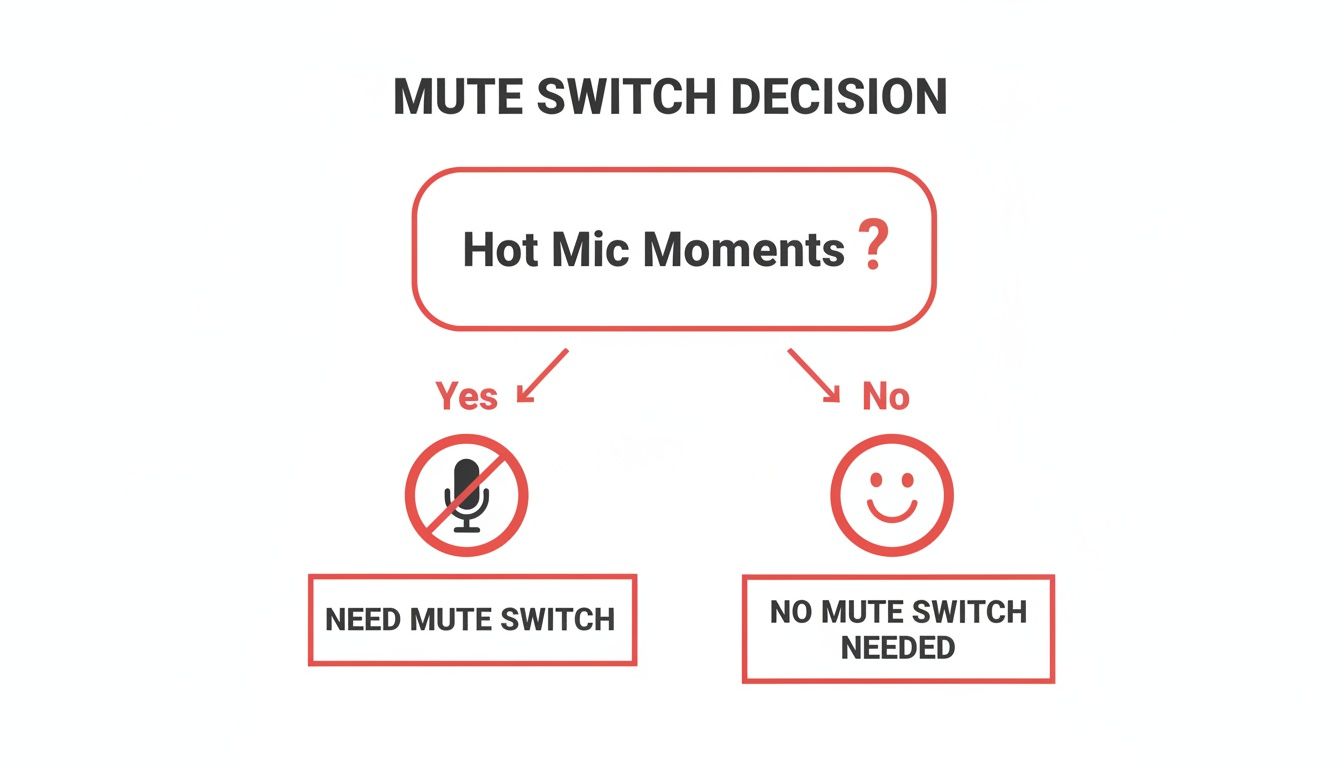
If you've ever had that "was I muted?" moment, then yes, a dedicated physical mute switch is one of the best investments you can make.
Let's break down the hardware. I've used all of these, and they each have their place.
# Hardware Options for Your Mute Switch
Here’s a comparison of the most popular choices people use to create a physical mute button.
| Hardware | Best For | Pros | Cons |
|---|---|---|---|
| Stream Deck / Loupedeck | Power users and streamers managing complex meeting workflows. | Highly customizable, clear visual feedback with LCD buttons, supports multi-actions. | Can be expensive; initial setup takes more time. |
| USB Foot Pedal | Presenters, musicians, or anyone needing a hands-free solution. | Discreet and frees up your hands; great for maintaining flow while typing or presenting. | Cheaper models may not be programmable; quality varies. |
| Keyboard Shortcut | Anyone on a tight budget or testing the waters. | It's free. You already have the hardware. | Easy to forget the key combo, can conflict with other apps, no tactile feedback. |
The right choice depends on your day-to-day needs. A simple keyboard shortcut might be enough for occasional calls, but for back-to-back meetings, a dedicated device is a big improvement.
# Stream Decks and Loupedecks
These are top-tier options. Devices like the Elgato Stream Deck (opens new window) or a Loupedeck (opens new window) console give you programmable LCD buttons that show you exactly what your mute status is. That visual confirmation is invaluable.
They're not just for muting. You can program a single button to mute your mic, turn off your camera, and launch your presentation notes all at once. For anyone juggling multiple apps, the investment pays for itself in efficiency.
# USB Foot Pedals
A foot pedal is a brilliant hands-free solution that lets you tap to mute or unmute without anyone on the call knowing. This is perfect if your hands are busy typing, gesturing, or managing a presentation.
A dedicated pedal keeps your audio control separate and immediate. Think of it as a clutch for your conversation.
Be careful which one you buy. Look for a programmable pedal that can act like a keyboard. Many cheap transcription pedals are hard-coded and won't work with MuteDeck. Brands like Elgato make pedals that are a safe bet.
# Custom Keyboard Shortcuts
If you're on a budget, you can use a keyboard you already own. The idea is to map a complex, unused shortcut (like Ctrl+Shift+Alt+M) as your mute toggle. It costs nothing.
But it has drawbacks. It's easy to forget the shortcut in the heat of the moment, and it can sometimes clash with hotkeys in other apps. You also miss the certainty of a dedicated, physical button.
The demand for better audio control is growing. The wireless microphone market, valued at USD 2.1 billion in 2024, is projected to hit USD 2.4 billion by 2025. People want reliable control, and a good mute function is part of that.
The switch is only half of the equation. A great microphone is just as important. For recommendations, check our guide to the best microphones you can buy in 2024 (opens new window).
Your hardware should make your life easier, not add another thing to worry about.
# Setting Up MuteDeck for Universal Control
Think of MuteDeck as the brains behind your physical mute button. It's the software that connects hardware—like a Stream Deck, Loupedeck, or foot pedal—to all your meeting apps. This is what lets you press one button and know you're muted everywhere.
The concept is simple. MuteDeck runs quietly in the background, waiting for the signal from your hardware. The moment you press the button, it tells Zoom, Teams, or whatever you're using to mute or unmute. No more hunting for the on-screen button.
# Installation and First Run
Getting MuteDeck running is straightforward. Grab the installer for Windows or macOS from the MuteDeck site and run it. There are no tricky configurations.
Once installed, you'll find the MuteDeck icon in your system tray (Windows) or menu bar (macOS). The first time you open it, MuteDeck scans your system for meeting apps like Zoom, Teams, and Google Meet, and it also looks for any connected hardware.
It’s universal. You set up your mute button once, and MuteDeck makes sure it works in every app. You'll never have to learn another shortcut or fumble with a different interface again.
This kind of physical control is becoming a must-have. The tech behind many modern microphones, like the tiny MEMS (Micro-Electro-Mechanical Systems) mics in our laptops and headsets, is booming. That market was valued at USD 2.52 billion in 2025 and is on track to hit USD 5.80 billion by 2033, because people demand better control over their audio. You can find more details on the growth of the MEMS microphone market at snsinsider.com (opens new window).
# Connecting Your Hardware
With MuteDeck installed, it's time to link it to your physical button. How you do this depends on your gear.
- Elgato Stream Deck: Go to the Elgato Marketplace and install the official MuteDeck plugin. Drag the "Toggle Mute" action onto any button on your Stream Deck. Done.
- Loupedeck: Just like with the Stream Deck, there's a dedicated MuteDeck plugin. Add it through the Loupedeck software and assign the mute function to a button or dial.
- USB Pedals & Keyboards: Use your device's software to assign it a unique, obscure keyboard shortcut—something you'll never press by accident, like
Ctrl+Shift+F13. Then, go into MuteDeck’s settings and tell it to listen for that exact shortcut.
MuteDeck listens for these specific commands. When it hears the keypress from your pedal or the signal from your Stream Deck, it translates it into a mute command for whichever meeting app is active. We have detailed guides for connecting your specific devices in our help center (opens new window).
Once you're connected, test it. Fire up a meeting app, press your button, and watch the mute icon change. You've now built a physical mute switch for your microphone.
# Practical Workflows for Meetings and Streaming
A physical mute switch is a starting point for building smarter workflows. Once you have reliable, one-tap control, you can chain actions together to handle repetitive tasks with a single press. This is where you move from simple convenience to real productivity gains.
Here are a few concrete examples you can use. We're moving beyond a simple mute and into custom actions.
# The Corporate Meeting Power Move
For anyone in back-to-back calls in apps like Microsoft Teams (opens new window) or Zoom (opens new window), a single button can manage your entire presence. Instead of just muting your audio, you can program a multi-action on a Stream Deck (opens new window) or Loupedeck (opens new window) to run a sequence.
Imagine you need to step away from your desk. One press can:
- Mute your microphone.
- Turn off your camera.
- Raise your virtual hand in Teams to signal you're stepping away.
When you're back, another tap reverses it all: it lowers your hand, turns your camera on, and unmutes your mic. This reduces your cognitive load so you can focus on the meeting, not the app's interface. You come across as more organized because the tech is doing the busywork.
# Streaming and Content Creation
For streamers, audio control is everything. A hot mic can ruin a broadcast. A physical mute switch is non-negotiable, but it can do more. By integrating MuteDeck with a tool like OBS Studio (opens new window), you can link your audio status to visual cues for your audience.
A classic streamer workflow is the "Be Right Back" (BRB) scene. With one button press, you can mute your microphone, switch to your BRB screen in OBS, and trigger a chat message to let viewers know what's up.
This creates a seamless broadcast. The audience gets a clear signal, and you know your private conversations stay private. Your mute button becomes part of your production toolkit.
# Hands-Free Control for Presenters
If you've delivered a presentation or led a webinar, you know your hands are already busy clicking through slides or demoing a product. A USB foot pedal is the perfect solution for hands-free mute control.
You can silently mute your mic to cough or grab a drink of water without breaking your flow. Your audience stays engaged with your content, unaware of the audio management happening behind the scenes.
This small addition makes you a more fluid and confident presenter. By offloading the mute function to a foot pedal, you free up your hands and mental energy for delivering a great message. These workflows show that a physical mute button is the starting point for communicating smarter.
# Troubleshooting Common Mute Switch Problems
Even a good setup can hit a bump. You press your trusty mute button, and nothing happens. It's frustrating, but most of these issues are simple to fix.
Here are the most common hiccups and how to fix them fast.
Your first check should always be the MuteDeck status indicator. That tiny icon in your system tray or menu bar tells you everything.
- Green circle: You're good. MuteDeck sees your hardware and is hooked into an active meeting.
- Yellow circle: A partial connection. It sees your hardware but can't find a supported meeting app.
- Red circle: There's a problem. MuteDeck can't connect to your hardware at all.
# When MuteDeck Can't Find Your App
A yellow status icon is the most common issue. It means MuteDeck is running but can't latch onto your meeting. This usually comes down to permissions or plugins.
First, check your system permissions. Both macOS and Windows require you to grant MuteDeck accessibility or automation permissions to talk to other apps. If you clicked "Deny" during setup, MuteDeck is walled off from seeing that Zoom or Teams call.
Next, think about plugins. MuteDeck uses specific integrations for each meeting app. If Zoom pushes a big update, your MuteDeck plugin for it might need a refresh. A quick trip to MuteDeck’s settings to check for updates often resolves this.
My Go-To Diagnostic Tip: Before restarting your computer, try this. First, fully quit the meeting application (don't just close the window). Then, restart the MuteDeck service from its menu. This forces a fresh handshake between the two and solves the problem 90% of the time.
# If Your Hardware Button Stops Responding
If MuteDeck is green, but your Stream Deck button or foot pedal is dead, there's a communication breakdown between your physical device and the MuteDeck software.
Run through this quick mental checklist:
- Is the Plugin Active? For an Elgato Stream Deck (opens new window) or Loupedeck (opens new window), make sure the MuteDeck plugin is installed and running. A software update for the device can sometimes disable third-party tools.
- Restart the Hardware's Own Software. The application that powers your device—like the Stream Deck app—can sometimes get stuck. A quit and restart of that specific app is often all it takes.
- Is Your Shortcut Hijacked? If you’re using a keyboard hotkey for a pedal, make sure another application hasn't "stolen" it. A newly installed app or a system update can sometimes reassign hotkeys, creating a conflict.
Nine times out of ten, these steps will cover the issue. By learning to read the status icon and knowing where to look first, you can solve most problems in under a minute.
# Answering Your Mute Switch Questions
Here are answers to common questions about setting up a physical mute switch.
# Can I Use Any USB Pedal as a Mute Switch?
Most programmable USB foot pedals work. The trick is to find one with software that lets you map it to a specific, unused keyboard shortcut—something like Ctrl+Shift+Alt+F12.
Once you’ve programmed that shortcut into the pedal's software, you just tell MuteDeck to listen for that combo. Pedals for gaming or transcription are usually the most flexible. Avoid basic ones that are hard-coded for a single function.
# Does This Mute My Microphone at the System Level?
No, and that's by design. MuteDeck works by controlling the mute function inside your meeting apps, like Zoom (opens new window) or Microsoft Teams (opens new window). This approach is more reliable than a system-level mute, which can sometimes be overridden by the app itself.
By controlling the app directly, you get clear visual confirmation that you're muted right where it matters—in the meeting interface. A true hardware-level mute requires an audio interface or a mic with a physical mute circuit built-in, which is a different setup.
This software-based control ensures what you see is what everyone else sees. No more guessing.
# Will MuteDeck Slow Down My Computer?
Not at all. MuteDeck is a lightweight app designed to run in the background without being noticed. It uses very little CPU and RAM, so you shouldn't see any hit to performance.
Even when you're video conferencing or streaming, the app’s footprint is tiny. It's built to do one thing: listen for a button press and tell your meeting app what to do.
# What if My Meeting App Is Not Officially Supported?
MuteDeck supports many popular meeting platforms out of the box. If your tool isn't on the official list, you can probably still get it to work.
The answer is global keyboard shortcuts. If your app has a shortcut for muting the mic that works even when the window isn't active, you’re set. Find that shortcut in your app's settings, assign it inside MuteDeck, and link it to your Stream Deck button or pedal. It’s a great workaround for many other tools.
Ready to build your own reliable MuteDeck setup? Stop fumbling for the mute button and take control of your meetings. Get started today at https://mutedeck.com (opens new window).