
# A Guide to Import Events to Google Calendar
Juggling schedules from Zoom, Teams, and other apps is a fast way to double-book yourself. Before you import events, you need a strategy. The goal is to get everything in one place for a single, reliable view of your day.
It’s the simplest way to avoid conflicts and stay organized.
# Why Centralize Your Schedule in Google Calendar
Managing multiple calendars invites chaos. When meeting invites live in separate apps, it’s impossible to see your real availability. You might say yes to a meeting on one platform, forgetting a conflict scheduled on another. This wastes everyone's time with rescheduling.
By creating a single source of truth in Google Calendar, you get a clean, unified overview of your day. No more guesswork.
# The Benefits of a Single Calendar View
A centralized calendar is about being effective. A sales professional can import a CSV of client demos and see them alongside internal team meetings. A project manager can upload key deadlines from a project tool and view them in context with everyone's availability.
The real relief comes from knowing what’s next without constantly switching between apps.
This approach helps you:
- Prevent Double-Bookings: See all commitments at a glance and stop scheduling conflicts before they happen.
- Prepare for Back-to-Back Calls: Spot consecutive meetings so you can grab coffee or prep notes in between.
- Manage Your Time: Get a complete picture of your workload and personal appointments, all in one spot.
Centralizing your schedule is a defensive move against chaos. It returns control over your time by eliminating the blind spots created by scattered event data.
# Meeting the Demands of Modern Work
Hybrid work has intensified our reliance on digital calendars. For example, professionals using a dedicated medical appointment scheduler (opens new window) need an efficient way to pull those events into their primary Google Calendar.
Google Calendar usage reflects this. Event imports grew by 40% year-over-year in 2021. Getting all your events in one place is now a standard practice.
Adopting a centralized calendar is also part of using the best collaboration tools for remote teams, as it ensures everyone works from the same playbook.
# CSV vs. ICS: Picking the Right File for Your Google Calendar Import
To get a bunch of events into Google Calendar, you first need to choose a file type: CSV or ICS. They seem similar, but picking the right one from the start will save you trouble.
A CSV (Comma-Separated Values) file is a simple spreadsheet. It's best for bulk uploads. I use this when I have a list of static events—like a content calendar for the next quarter or a project timeline with key milestones. If your data is already in a spreadsheet, CSV is the most direct path.
An ICS (iCalendar) file is the universal standard for calendar events. This format is richer and can handle details like attendee lists, recurring schedules, and location data. If you’re exporting an event or a whole calendar from an app like Outlook or Apple Calendar, it will almost certainly be an ICS file.
The goal is to stop juggling scattered schedules and bring everything into one central place.
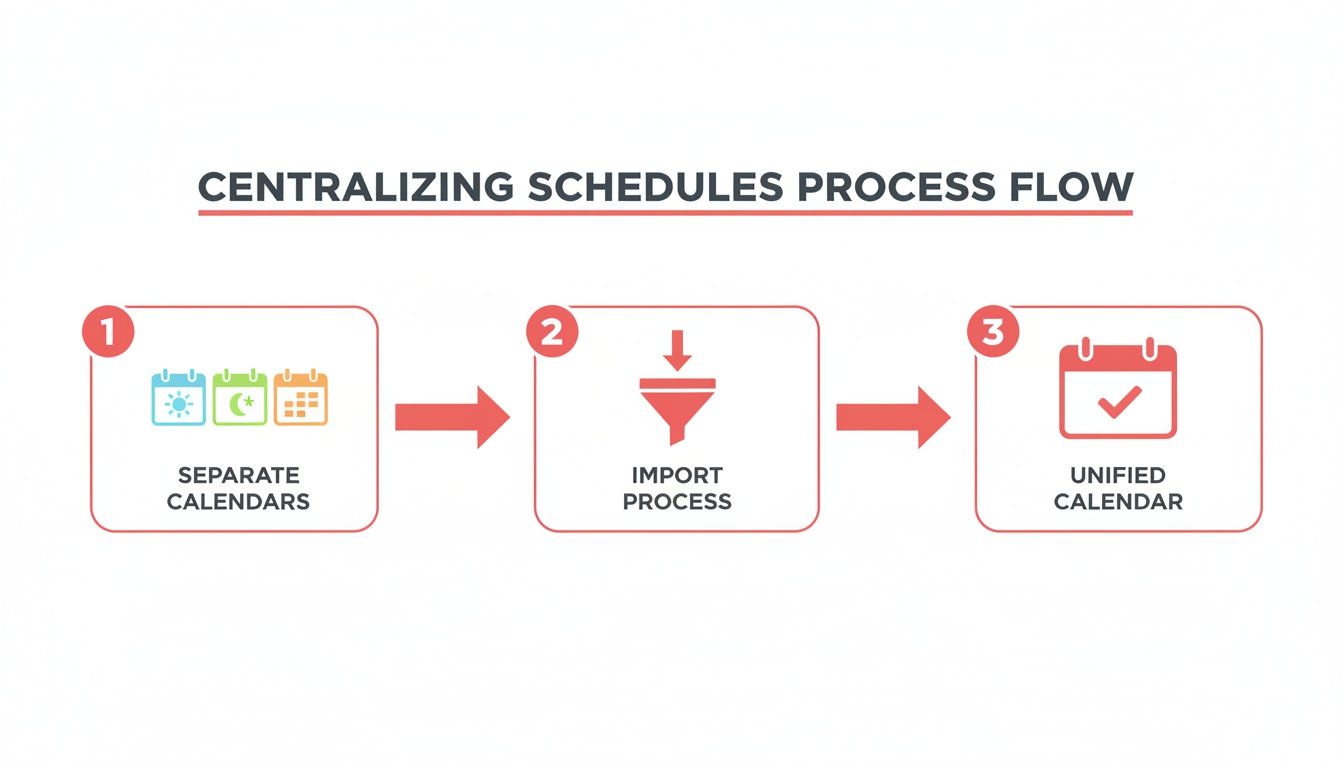
This process is about moving from chaos to control.
# CSV vs ICS: Which File Format Should You Use?
Here’s a quick breakdown to help you decide which format fits your needs.
| Feature | CSV (Comma-Separated Values) | ICS (iCalendar File) |
|---|---|---|
| Best For | Bulk uploading many simple events at once. | Exporting/importing single or multiple complex events. |
| Data Source | Spreadsheets (Google Sheets, Excel, etc.). | Other calendar applications (Outlook, Apple Calendar). |
| Complexity | Basic event details: name, date, time, description. | Rich event details: attendees, recurrence, alerts, status. |
| Flexibility | Less flexible; requires specific header formatting. | Highly flexible; a universal standard for calendar data. |
| Common Use Case | A project manager uploading 50 project milestones. | Forwarding a meeting invitation to someone else. |
For simple, bulk data from a spreadsheet, stick with CSV. For anything from another calendar app, ICS is the way to go.
# Formatting Your Files for a Smooth Import
This is where people get stuck. Google Calendar is picky about how it reads data. If the formatting is off, the import will fail.
For a CSV file, correct headers are non-negotiable. Your spreadsheet must have these two columns at a minimum:
- Subject: The name of your event.
- Start Date: The date the event begins, formatted as MM/DD/YYYY.
That's the bare minimum. You'll probably want more detail. Here are the other headers Google recognizes:
- Start Time:
10:00 AM - End Date:
11/15/2024 - End Time:
11:30 AM| All Day Event:True(for a full-day event) - Description:
Quarterly review meeting - Location:
Conference Room 4
Structuring a CSV is a useful skill. The same principles apply if you need to import contacts into Google (opens new window).
For ICS files, you don't have to worry about formatting. Since it's exported from another calendar app, it should already be structured correctly. Just export the file and it's ready.
# How to Move Events from Outlook and Apple Calendar
If you're juggling a work calendar in Outlook and a personal one in Apple Calendar, getting everything into Google is a common task. You don't need a syncing app. The trick is to export a universal .ics file from your original calendar, which Google Calendar can import.
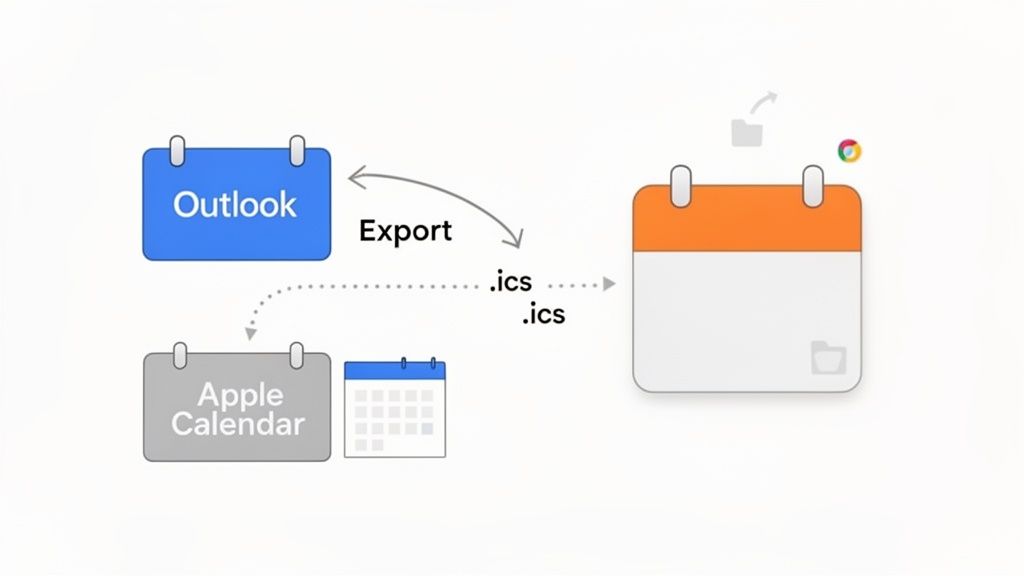
This export-and-import process lets you consolidate your schedules into one place. Here's how to do it on each platform.
# Exporting from the Outlook Desktop App
Using the Outlook desktop app gives you the most control over the export. This is the best method if you need to pull an entire calendar's history.
Open Outlook and go to your calendar. In the left-hand pane, click the calendar you want to move. Then, navigate to File > Save Calendar.
A dialog box will open. Before saving, click More Options. Here you can define the exact date range, from "Whole calendar" to a specific period like the "Next 30 days." You can also set the level of detail, from "Availability only" to "Full details." For a complete migration, choose Full details. Save the .ics file somewhere easy to find.
# Exporting from Outlook on the Web
If you use Outlook on the web (opens new window) or Microsoft 365, the process is different but just as effective.
- Click the Settings gear icon in the top right.
- Go to Calendar > Shared calendars.
- In the "Publish a calendar" section, select the calendar you want to share.
- Set permissions to "Can view all details" to ensure everything is exported.
- Click Publish. Outlook generates two links: one for HTML and one for ICS.
- Right-click the ICS link and choose "Save link as..." to download your calendar file.
This browser-based method is useful for grabbing a quick snapshot of your calendar without opening the desktop application.
You're creating a static snapshot of your calendar. Any changes you make in Outlook after exporting won't show up. This is a one-time transfer, not a live sync.
# Exporting from Apple Calendar on a Mac
Apple makes this process simple.
To export an entire calendar, right-click on the calendar's name in the left sidebar and select Export. Give the file a name, save the .ics file, and you're done.
If you only need a few specific meetings, there’s a drag-and-drop shortcut. Click an event (or hold Command while clicking to select several) and drag them to your desktop. This instantly creates an .ics file containing only those events. It’s a quick way to send a few meetings to someone who needs to import events to Google Calendar.
# Troubleshooting Common Google Calendar Import Errors
A failed import is frustrating. You prep your file, hit "upload," and Google Calendar returns a vague error message. The classic "Could not upload your event(s)" usually hides a simple problem that's easy to fix.
Most of the time, this isn't a bug—it’s a formatting mismatch. Let's go through the usual suspects.
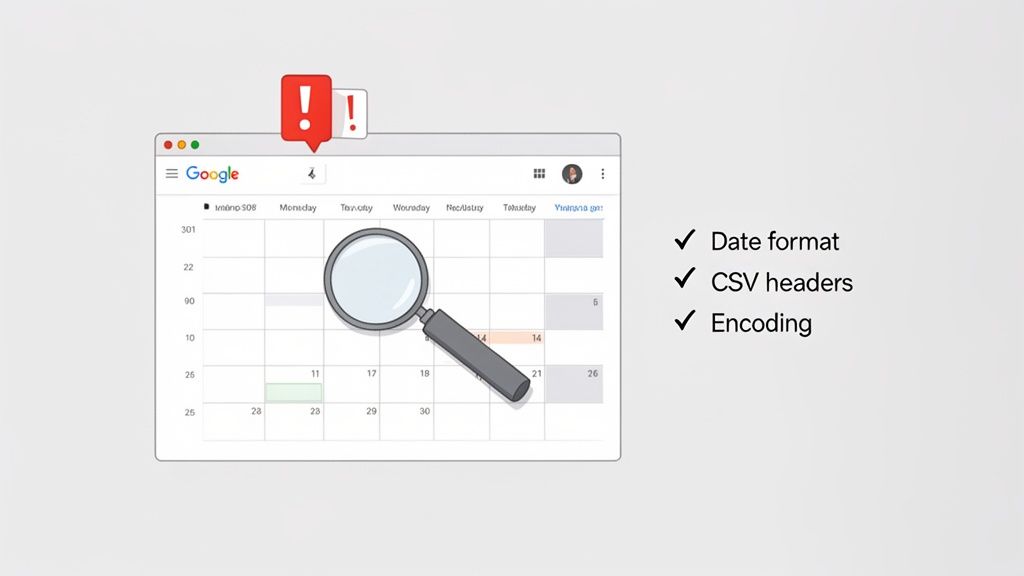
When an import fails, the first things to check are the file’s structure and the data inside it. A small mistake can stop Google from processing it.
# Incorrect Date and Header Formatting
This is the number one cause of failed imports, especially with CSV files. Google Calendar is strict about how it reads your data.
Here’s your checklist:
- Date Format: Google requires dates in MM/DD/YYYY format. If your spreadsheet program defaults to a regional format like DD/MM/YYYY, the import will fail. You must change the cell format before you export the CSV.
- Required Headers: Your CSV file must have
SubjectandStart Datecolumns. Without those two, Google doesn't know what to create. - Header Spelling: Simple typos will trip you up.
Descrptioninstead ofDescriptionorAll Day eventsinstead ofAll Day Eventwill cause those columns to be ignored.
Pro Tip: Create a template CSV file with all the correct headers. Keep it on your desktop and copy-paste your event data into it each time you need to do a bulk import.
# File Size and Event Count Limits
While Google doesn't post official limits, practical ones exist. If you upload a massive file with thousands of events, the server often times out, leading to a failed or incomplete import.
Files larger than 1 MB or containing more than a couple thousand events are likely to cause problems.
The solution is to split up your file. If you have a CSV with 5,000 events, break it into three smaller files with around 1,600 events each. It’s an extra step, but it’s more reliable than forcing a huge file through at once.
# Character Encoding and Recurring Events
Sometimes the issue is more subtle. If your event titles or descriptions show up with garbled symbols (like  or ’), you have a character encoding problem. Google Calendar expects files to be in UTF-8 encoding. When you save your CSV, make sure you select that option.
Recurring events can also be a problem. If you import an ICS file and a recurring series only shows up as a single event, the recurrence rule (RRULE) in the file is likely formatted in a way Google doesn’t understand. The easiest fix is often to recreate that recurring event directly in Google Calendar. For more complex problems, you might need to troubleshoot deeper, much like when an app is not detecting (opens new window) the right inputs.
# Common Import Errors and Their Solutions
This quick-reference table should help you pinpoint the problem and get back on track.
| Error Message / Symptom | Common Cause | How to Fix It |
|---|---|---|
| "Could not upload your event(s)" | The file is empty, has incorrect headers, or is in the wrong format (e.g., XLS instead of CSV). | Double-check that you have Subject and Start Date headers. Ensure the file is a proper CSV or ICS file. |
| Events are created on the wrong dates. | The date format in your CSV (e.g., DD/MM/YYYY) doesn't match Google's required MM/DD/YYYY format. | In your spreadsheet app, reformat the date columns to MM/DD/YYYY and re-export the CSV. |
| "Processed 0 out of X events." | All events in the file have a critical error, often related to dates or missing required fields. | Open the CSV and verify that every single row has a valid Subject and Start Date. |
| Text in descriptions or titles appears garbled. | The file was saved with the wrong character encoding. | Open your file in a text editor or spreadsheet program and re-save it with UTF-8 encoding. |
| A recurring event only imports once. | The RRULE (recurrence rule) in your ICS file is invalid or unsupported by Google Calendar. | Delete the single imported event and recreate the recurring series manually in Google Calendar. |
Most import issues are caused by these common culprits. A quick check of your file's formatting, size, and encoding will solve the problem most of the time.
# Automating Your Calendar with Subscriptions and Integrations
Manual imports are great for getting many events onto your calendar at once, but they are static. You’re creating a snapshot in time. The second something changes in the original source, your Google Calendar is out of date.
For a dynamic schedule that manages itself, you need automation. This is where you let your tools do the work, creating a calendar that updates in real-time.
# Subscribing to Calendars with an iCal URL
The simplest way to automate your calendar is by subscribing to a calendar feed using an iCal URL. Think of it as a live, one-way link to another calendar. Instead of importing a static file, you're telling Google Calendar to periodically check a source for updates.
This is good for keeping up with information that changes over time. Many apps and services offer this.
For example:
- Project Management Tools: Asana (opens new window) or Trello (opens new window) can generate a calendar URL for a project, so new tasks and deadlines appear in your Google Calendar automatically.
- Team Schedules: Your company’s HR system might have an iCal feed for public holidays or the team’s vacation schedule.
- Booking Systems: Services like Calendly (opens new window) can publish your booked appointments to a feed that you can pull into your main calendar.
To set one up, go to your Google Calendar settings, click "Add calendar," and choose "From URL." Paste the link, and you’re done.
You can't edit events from a subscribed calendar. They're read-only inside Google Calendar. Changes have to be made in the original app. This keeps the source of truth clean and prevents accidental edits.
# Connecting Your Apps with Zapier or Make
For more powerful automation beyond simple subscriptions, tools like Zapier (opens new window) and Make.com are useful. These platforms act as a bridge between your apps, letting you build custom workflows that add events to your calendar based on specific triggers.
This moves you from syncing data to process automation. You're not just pulling from another calendar; you're creating new events based on actions happening anywhere in your workflow.
# Building Custom Calendar Workflows
With an automation tool, you can create "if this, then that" rules that make your calendar an active part of your workflow.
Here are a few real-world examples:
- CRM Integration: Set up a trigger so that every time a lead is marked as "Demo Scheduled" in Salesforce (opens new window), an event is automatically created in your Google Calendar with the client’s details.
- Payment Processing: Connect your calendar to Stripe (opens new window) or PayPal (opens new window). When a new customer payment is processed, automatically schedule a "Client Onboarding" call for three days later.
- Form Submissions: When someone fills out a contact form on your website, instantly create a "Follow-up" event in your calendar for the next business day.
This approach turns your calendar from a passive planner into an active assistant. By connecting services, you build a system where events manage themselves, freeing you from manual entry. For those who want to get more hands-on, learning to use webhooks (opens new window) can unlock even more automation possibilities.
# Common Questions and Quick Fixes
Even with a straightforward process, a few situations can pop up when importing events into Google Calendar. Here are the answers to common questions.
# Can I Import Events to Google Calendar on My Phone?
No. The Google Calendar mobile apps for Android and iOS don't have a feature for importing files like CSV or ICS. This is a task you can only do on the desktop web version.
Log into your Google Calendar account on a computer to handle the import. Once the events are in, they'll sync everywhere automatically—your phone, tablet, and any other device will get the update.
# How Do I Update Events That I Already Imported?
Google Calendar doesn't have a "merge" or "update" function for imports. If you import the same file twice, you get duplicate events.
The right way to handle changes is to delete the old events first, then import the new, corrected file.
You have two options:
- If the events are in a separate calendar: This is the cleanest approach. Delete the entire calendar, then import your updated file into a fresh one.
- If the events are mixed into your main calendar: This is more tedious. You'll have to manually search for and delete the old events one by one before importing the new file.
Think of it as a clean swap, not an update. Remove the old set of events before bringing in the new one. This will save you from confusion down the road.
# What Happens If My CSV File Has Custom Fields?
Google Calendar will ignore them. When you import a CSV, it's programmed to look for specific column headers and will only pull data from those.
Here are the standard headers it recognizes:
SubjectStart DateStart TimeEnd DateEnd TimeAll Day EventDescriptionLocation
Any extra columns in your spreadsheet, like Project ID or Client Name, will be skipped during the import. Make sure all crucial information is in one of the supported columns before you upload.
# Is There a Limit to How Many Events I Can Import at Once?
While Google doesn't list an official number, my experience shows that large files tend to fail. Trying to import a CSV with thousands of events or anything larger than 1 MB often results in a timeout error.
The most reliable workaround is to break up large files into smaller chunks. If you have a spreadsheet with 4,000 events, split it into two separate files of 2,000 events each. Importing them one after another is a simple trick that almost always works.
When every meeting takes place on a different platform, managing your calls becomes a job in itself. MuteDeck simplifies your workday by giving you consistent, universal controls for mute, camera, and more across Zoom, Teams, and Google Meet. Stop hunting for buttons and run your meetings with confidence. Learn more at https://mutedeck.com (opens new window).