
# A Practical Guide to Healthcare Video Conferencing
Healthcare video conferencing isn't just using video chat for clinical services. It's a secure, real-time connection between patients and providers for consultations, follow-ups, and more. This requires a platform that is reliable and compliant with patient privacy laws like HIPAA.
# Choosing the Right Platform for Clinical Use
Picking a video conferencing platform is a clinical decision, not just an IT one. The software you choose affects patient safety, data security, and the quality of care. The focus must be on security, reliability, and ease of use for both your clinical team and your patients.
The market for these tools is growing. Valued at USD 88.3 million in 2023, it will expand as telehealth usage has settled in at 38 times higher than before the pandemic. You can find more industry analysis on the growth in telehealth usage (opens new window).
# The Non-Negotiables: Compliance and Security
HIPAA compliance is the absolute baseline. Any vendor you consider must be willing to sign a Business Associate Agreement (BAA).
A BAA is a legal contract that makes the vendor responsible for protecting any patient health information (PHI) that passes through their system. If a vendor hesitates or refuses to sign one, walk away.
A BAA is just the entry ticket. You need to examine their security measures.
- End-to-End Encryption (E2EE): This is mandatory. It ensures that only the provider and the patient can see or hear the consultation. Not even the platform provider can access the video stream.
- Access Controls and Logs: Your system needs to let you control who can access what and must keep a clear audit trail of all user activity.
- Data Storage Policies: You need to know exactly where and how data—like chat logs or recordings—is stored and for how long. Get clear answers on their retention policies.
To make sure you're covering all your bases, use a solid HIPAA compliance checklist (opens new window) when evaluating any potential platform.
# Patient Experience: The Real Deciding Factor
A secure platform is useless if your patients can't use it. The patient experience has to be frictionless.
Ask this simple question: Can a patient join a session with a single click from an email or text message?
If the answer is no, you have a problem. Forcing patients to download an app, create an account, or remember a password creates a barrier to care. This is especially true for older patients or anyone not tech-savvy. The ideal workflow sends a secure link that opens directly in a web browser on their phone or computer.
This flowchart lays out a simple way to think through the decision.
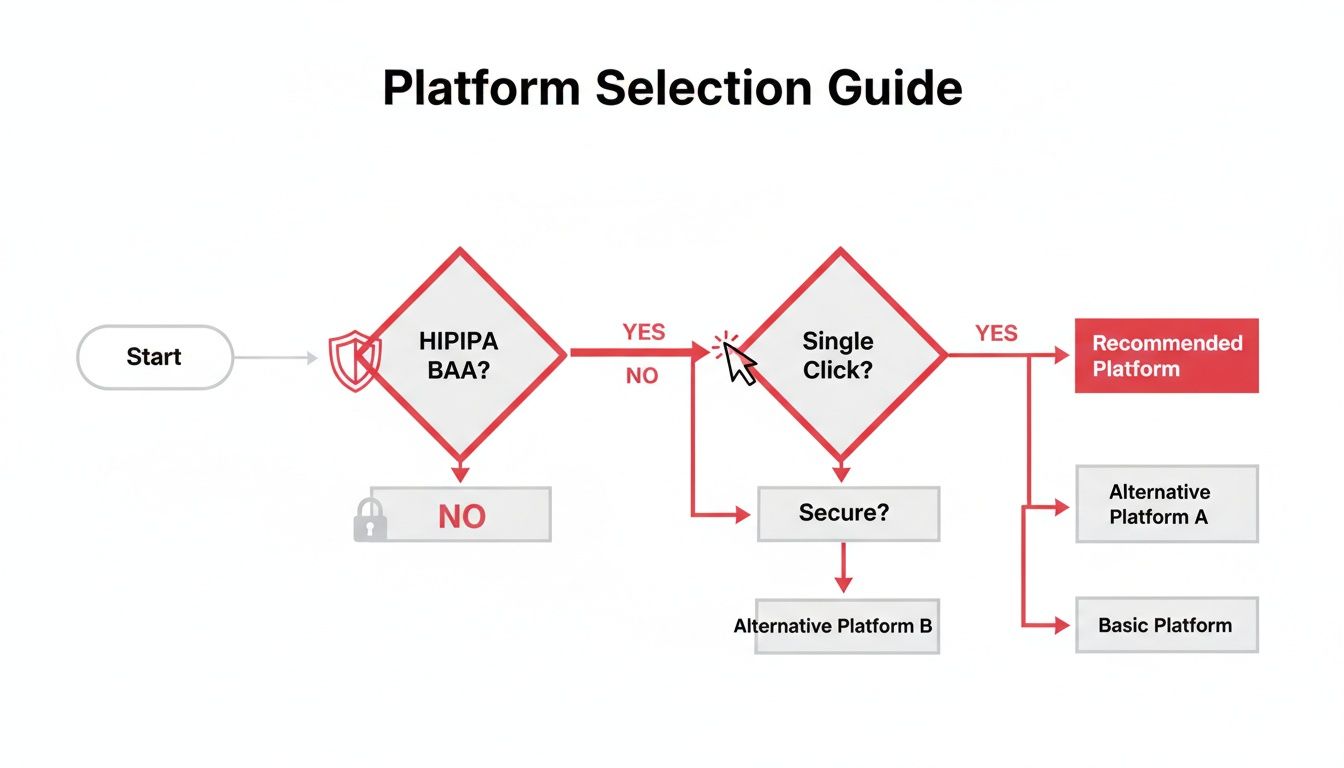
HIPAA compliance and a simple user experience are the first two gates. Everything else comes after.
Use this checklist to ask the right questions when vetting potential platforms.
# Healthcare Video Conferencing Platform Checklist
| Feature/Requirement | What to Look For | Why It Matters |
|---|---|---|
| HIPAA Compliance | A signed Business Associate Agreement (BAA) is mandatory. | A legal requirement that protects you and your patients. No BAA, no deal. |
| End-to-End Encryption | Explicit confirmation that E2EE is enabled by default for all sessions. | Guarantees conversations remain private between the patient and provider only. |
| Single-Click Access | Patients can join via a direct link without needing to download apps or create accounts. | Removes technical barriers, reduces no-shows, and makes telehealth accessible. |
| Browser-Based | The platform runs smoothly in standard web browsers on desktop and mobile. | Avoids app updates, compatibility issues, and installation problems for patients. |
| Audit Logs | The ability to track user access, session times, and other key activities. | Important for security audits, incident investigation, and maintaining compliance records. |
| Data Residency | Clear policies on where patient data (like recordings or chat logs) is stored. | Ensures data is stored in a compliant location and meets regional data sovereignty laws. |
Choosing the right platform is about finding the sweet spot between ironclad security and a user-friendly experience. Getting it right is fundamental to providing effective virtual care.
# Setting Up Your Telehealth Workspace
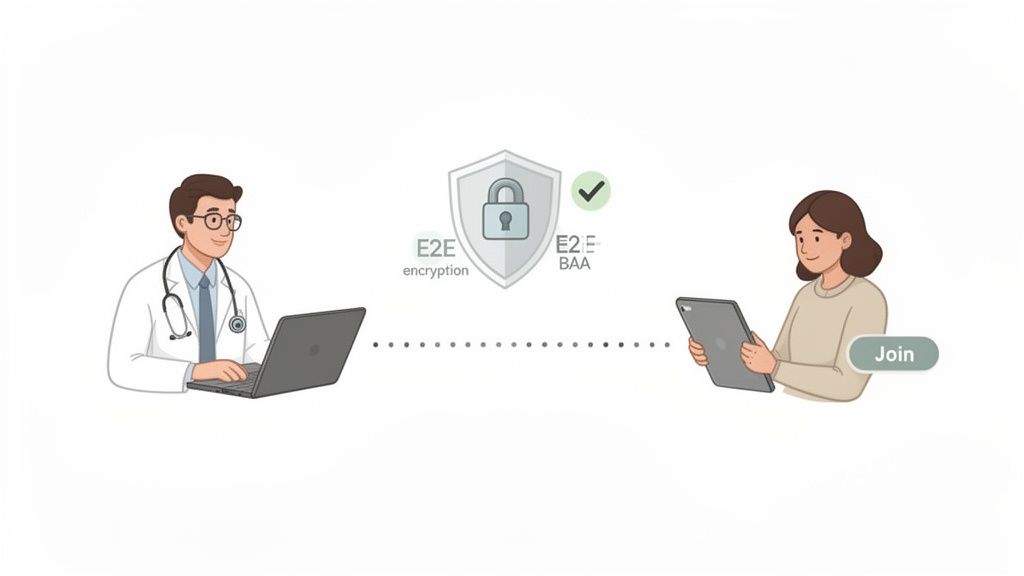
A successful virtual visit depends on more than good software. The physical space you use projects professionalism, protects patient privacy, and builds trust. Getting this right from the start prevents headaches.
Your hardware doesn't need to be top-of-the-line, but it does need to be reliable. An external webcam is almost always a better choice than the one built into your laptop. A camera like the Logitech C920 delivers a sharp, clear image without complicated setup.
The same goes for audio. A simple USB microphone, like a Blue Yeti, is a massive upgrade over your computer's built-in mic. It captures your voice clearly and helps cut down on background noise.
# Lighting and Background
Good lighting is essential. The goal is to light your face evenly and avoid harsh shadows. You don't need a full studio—a simple ring light behind your webcam or two small lamps on either side of your monitor works well.
The main light source should be in front of you, not behind. A bright window at your back will turn you into a silhouette.
Your background should be clean, professional, and private.
- Keep it simple: A neutral wall, a bookcase, or a plant works. Avoid personal photos or cluttered desks.
- Guarantee privacy: Make sure family members or colleagues can't walk through your shot. Check that no patient information is visible on a whiteboard or another screen behind you.
- Use a room with a door: Close it before every call. An "On Call" sign is a low-tech but effective way to prevent interruptions.
The physical space you use for healthcare video conferencing becomes an extension of your clinical practice. A quiet, private, and well-lit room tells the patient their confidentiality is taken seriously.
# Your Internet Connection and Backup Plan
A stable internet connection is the backbone of telehealth. Use a wired Ethernet connection over Wi-Fi if you can—it's more reliable. Before seeing patients, run a speed test. Aim for at least 15-20 Mbps for a smooth, high-definition video stream.
Even the best internet has bad days. You need a backup plan. A mobile hotspot can save you when your connection drops mid-consultation. You can use your smartphone to create a Wi-Fi network that will get you through the appointment. Test this process before you need it, so you know exactly how to switch over.
Your workspace setup is a critical step. You can learn more about the importance of a dedicated work-from-home space (opens new window) in other guides.
# Mastering the Virtual Consultation with Physical Controls
Nothing breaks the connection with a patient faster than fumbling with on-screen buttons during a sensitive conversation. When a clinician's eyes dart around the screen, hunting for the mute or screen share toggle, the focus shifts from the patient to the technology.
The goal is to make the tech feel invisible. By using physical hardware controls, a clinician can manage the meeting without touching their mouse or looking away from the patient. This changes the dynamic of the consultation.
Around 76% of U.S. hospitals now use video conferencing and 85.9% of psychiatrists conduct weekly virtual visits. Smooth operation isn't a luxury. You can find more stats on the growing global healthcare video conferencing market (opens new window).
# Reducing Cognitive Load with Dedicated Hardware
Think about everyday interruptions. A dog barks, a family member enters the room, or you need to stifle a cough. In a typical setup, the clinician has to find the cursor, move it to the mute icon, and click. That three-step process breaks eye contact and interrupts the conversation.
Now, imagine a small physical device like an Elgato Stream Deck (opens new window) on the desk.
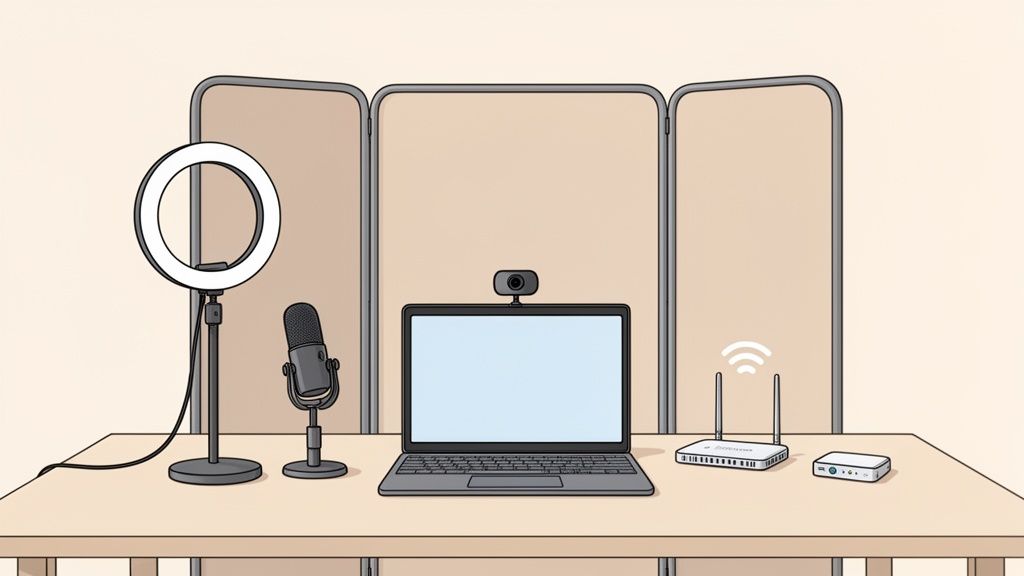
When you pair dedicated hardware like this with software like MuteDeck, you get instant, tactile control over your meeting.
That unexpected bark is silenced with a single, reflexive button press. The clinician never breaks eye contact. They stay present with the patient, managing the disruption without derailing the consultation. This reduces the provider's cognitive load, letting them focus on what the patient is saying.
# Practical Controls for Seamless Patient Interaction
The benefits go beyond muting. You can program physical buttons to handle any meeting action instantly.
- Toggle Camera: Turn your video on or off with a single tap. Useful for when you need to step away for a moment.
- Start/Stop Screen Share: Need to share test results or educational materials? A dedicated button makes the transition seamless, avoiding the awkward pause while you search through menus.
- Leave Meeting: End the call cleanly with one press.
By offloading meeting controls to physical hardware, clinicians can maintain a more natural, human connection. The technology fades into the background, allowing the focus to remain on patient care.
This approach creates a calmer, more controlled environment for the provider and a more professional experience for the patient. You can see a breakdown of how this stacks up against standard software buttons in our comparison of MuteDeck vs. native meeting controls (opens new window). Mastering the virtual consultation is about removing friction, and physical controls are one of the best ways to do it.
# Training Staff and Managing Patient Consent
Rolling out a new telehealth service is more than just technology; it’s a shift in how your team provides care. Without proper training and clear consent policies, even the best platform will create friction for your staff and a clumsy experience for patients. The goal is to build confidence and establish transparent routines.
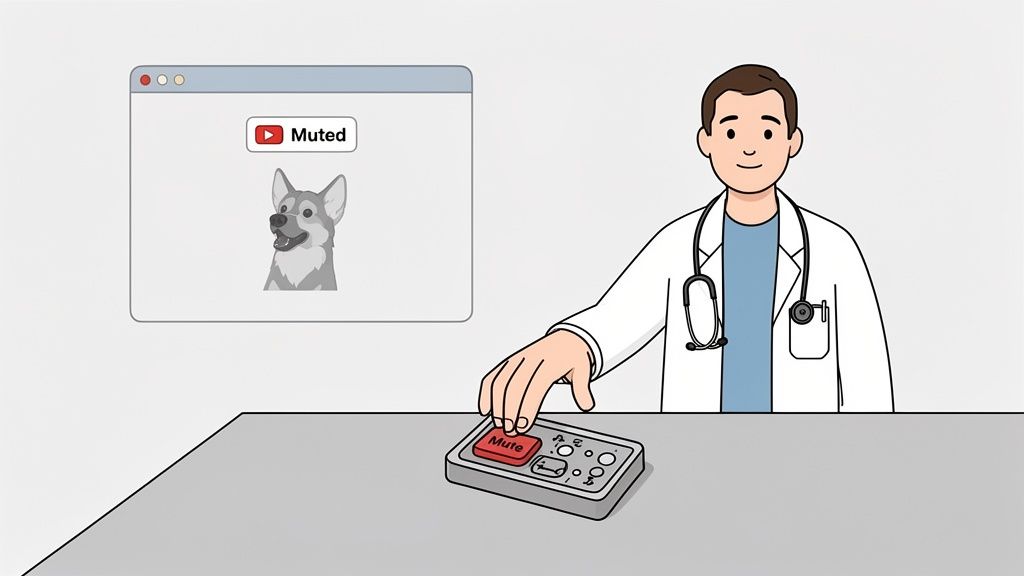
Showing your team the login button isn't training. Effective training must be practical, tackling real-world situations. This applies to both clinical and administrative staff.
# Building a Practical Staff Training Program
Your training needs to be hands-on, focusing on skills, not just a tour of software features. You want the tech to become second nature. Role-playing different scenarios is the fastest way to build that muscle memory.
A solid training checklist should include these points:
- Software Proficiency: Go beyond the basics. Can they confidently start a call, manage participants, share their screen, and use the chat feature securely?
- Troubleshooting 101: Give them a simple script to walk patients through common problems, like a muted mic or a camera that won't turn on. Your administrative team should be the first line of defense.
- Practicing "Webside Manner": Train your staff to look at the camera to maintain eye contact, speak clearly, and project a professional vibe on screen.
- Emergency Protocols: What happens if a patient has a medical emergency mid-call? Every staff member needs to know the exact steps to follow.
# Managing Patient Consent for Virtual Care
Informed consent for telehealth is more than a checkbox. It's a conversation that sets expectations and builds trust. The process must be clear, documented, and completed before the first virtual visit.
Your consent form and workflow should explain several key details. Patients have to understand what a virtual consultation involves.
The consent process for healthcare video conferencing isn't just a legal formality. It's the first step in educating the patient, managing their expectations, and making them a partner in their virtual care.
When you write your policy, be explicit about the limitations of telehealth, explain how personal health information is protected, and detail your clinic’s policy on recording. A firm "no recording by either party without explicit written consent" is a non-negotiable best practice.
Use plain language and avoid legal jargon. This makes the document accessible and prevents confusion. That upfront clarity reassures patients that their privacy is your top priority.
For telehealth to work, it can't feel like a separate chore. The goal is to weave it directly into your daily operations. It should feel like a natural extension of your clinical process, not another administrative headache.
It starts with your scheduling software. If your team is manually sending meeting links for every virtual appointment, you're setting yourself up for mistakes and wasted time. Your video platform must connect directly to your scheduler.
When a patient books a telehealth visit, the system should automatically generate a unique, secure link and add it to the confirmation and reminder emails. This automation saves friction for your staff and your patients.
# Connecting to Your Electronic Health Record
Next is integrating with your Electronic Health Record (EHR) system. This bridges the gap between the virtual consult and the patient's medical record. Without it, clinicians are stuck copying and pasting notes, which is slow and error-prone.
A solid integration lets a provider:
- Launch the video call right from the patient’s chart in the EHR.
- Document the visit in real-time inside the EHR while the video is running.
- Automatically log details like call start time, end time, and total duration into the patient's record for billing.
This creates one unified workflow. The video call becomes another tool inside the EHR environment, not a separate app to juggle.
The best telehealth setups make the technology almost invisible. The focus stays on the patient and their chart, with video acting as a simple communication channel.
# Designing Patient-Centered Workflows
Beyond tech connections, you can redesign your process to feel like an in-person visit. A good example is the "virtual rooming" process.
Instead of the physician handling initial tech checks and intake questions, a medical assistant can join the video call first. They can confirm the patient’s identity, review their medication list, get the rundown on their symptoms, and check their audio and video.
Once that's done, the medical assistant places the patient in a virtual waiting room, and the physician joins the call fully prepped. This approach saves time for the physician and makes the experience smoother for the patient. Specialized services, like getting a telehealth ADHD diagnosis (opens new window), become more accessible when these workflows are dialed in.
Tools with an accessible API, like MuteDeck, can take this automation even further. You could set up a system where the moment a doctor hits a "Leave Meeting" button on their physical controller, the exact call duration is logged into a separate billing system. This kind of integration strips away manual work, freeing up clinical staff to focus on patient care.
# Measuring Success and Solving Common Problems
Is your new telehealth setup making a difference? Counting the number of virtual visits won't give you the full picture. You need to look at metrics that show whether it's working for your patients and clinical outcomes.
A good place to start is your no-show rate. Pull the numbers for your virtual appointments and compare them against your in-person visits. If you see a meaningful drop in no-shows on the telehealth side, that’s a win. It’s a clear signal that the convenience is paying off.
# Key Performance Indicators for Telehealth
After you've looked at attendance, go deeper into the quality of care. These metrics prove the value of your virtual care program.
- Patient Satisfaction Scores: This is a must. After a visit, automatically send a simple one or two-question survey. "How was your experience?" and "Would you use this service again?" are all you need.
- Clinical Resolution Rates: Are your virtual visits solving the problem? Track how often a telehealth appointment ends with a clear resolution, without needing an immediate in-person follow-up. A high rate shows your system is effective.
- Time to First Appointment: How long does a new patient wait for an in-person slot versus a virtual one? If telehealth cuts that wait time from weeks to days, you’re improving access.
# A Quick Troubleshooting Guide
Tech glitches will happen. The key is making sure they're a minor speed bump, not a roadblock that derails an appointment. Your team needs a simple, non-technical cheat sheet to help patients get back on track.
When a patient says, "I can't hear you," the fix is almost always on their end. The first thing to ask is if their computer's main volume is turned up. It sounds too simple, but it solves the problem more than half the time.
Here's a quick reference guide for the most common snags.
# Common Telehealth Technical Issues and Fixes
| Problem | Quick Fix | If That Fails |
|---|---|---|
| "I can't hear you." | Check if your computer's master volume is up and not muted. In the meeting app, ensure the correct microphone is selected. | Close other apps that might be using the microphone (like other chat tools). Restart the browser or the computer. |
| "My video isn't on." | Look for a physical shutter covering your webcam lens. In the meeting app, click the video icon and select the correct camera. | Give your browser permission to access the camera. This is usually in the browser's settings under "Privacy and Security." |
| "The link isn't working." | Copy and paste the link directly into a new browser window instead of clicking it. Try opening it in a different browser (e.g., Chrome instead of Safari). | Ask the host to send a new invitation link. The original may have expired or been copied incorrectly. |
This table can be useful for your support desk or for clinicians to keep handy. Having these fixes ready can turn a frustrating experience into a smooth one.
Trying to manage the technical side of a call while also focusing on a patient is a tough balancing act. MuteDeck (opens new window) takes that stress away by giving you physical, one-touch controls for your mic, camera, and screen sharing on any meeting platform. You can stay locked in on your patient, not on your mouse.