# Google Meet microphone not working: operator runbook
If your Google Meet microphone is not working, run checks in this order: device selection, browser permission, operating system permission, and audio path conflicts. Most incidents resolve in under ten minutes when you isolate one layer at a time. The goal is to identify the exact failing layer before changing random settings.
A microphone failure during a live meeting feels chaotic, but the root cause is usually predictable. Hosts and IT operators need a repeatable method that works across Chrome, Windows, and macOS. This runbook gives you that method, plus decision rules for when to keep troubleshooting and when to switch hosts or devices.
# Fast symptom map for Google Meet audio issues
Start from what participants report. Then map symptom to likely fault domain.
| Symptom | Likely cause | First check | Typical fix time |
|---|---|---|---|
| Others cannot hear you at all | Wrong input device selected in Meet | Meet settings, Audio input dropdown | 1 to 2 minutes |
| Meet says mic blocked | Browser or OS permission denied | Browser site permission and OS privacy panel | 2 to 5 minutes |
| Audio cuts in and out | Bluetooth instability or CPU load | Switch to wired headset and reduce background apps | 3 to 8 minutes |
| Meter moves locally but nobody hears voice | Wrong processing device or virtual driver conflict | Disable unused virtual audio devices | 5 to 10 minutes |
| Works in one browser but fails in Chrome profile | Extension or enterprise policy conflict | Guest profile test, extension isolation | 5 to 12 minutes |
Use this map as an incident shortcut. Pick one row, run the corresponding checks, confirm result, then move to the next layer.
# Step 1: Confirm the input device inside Google Meet
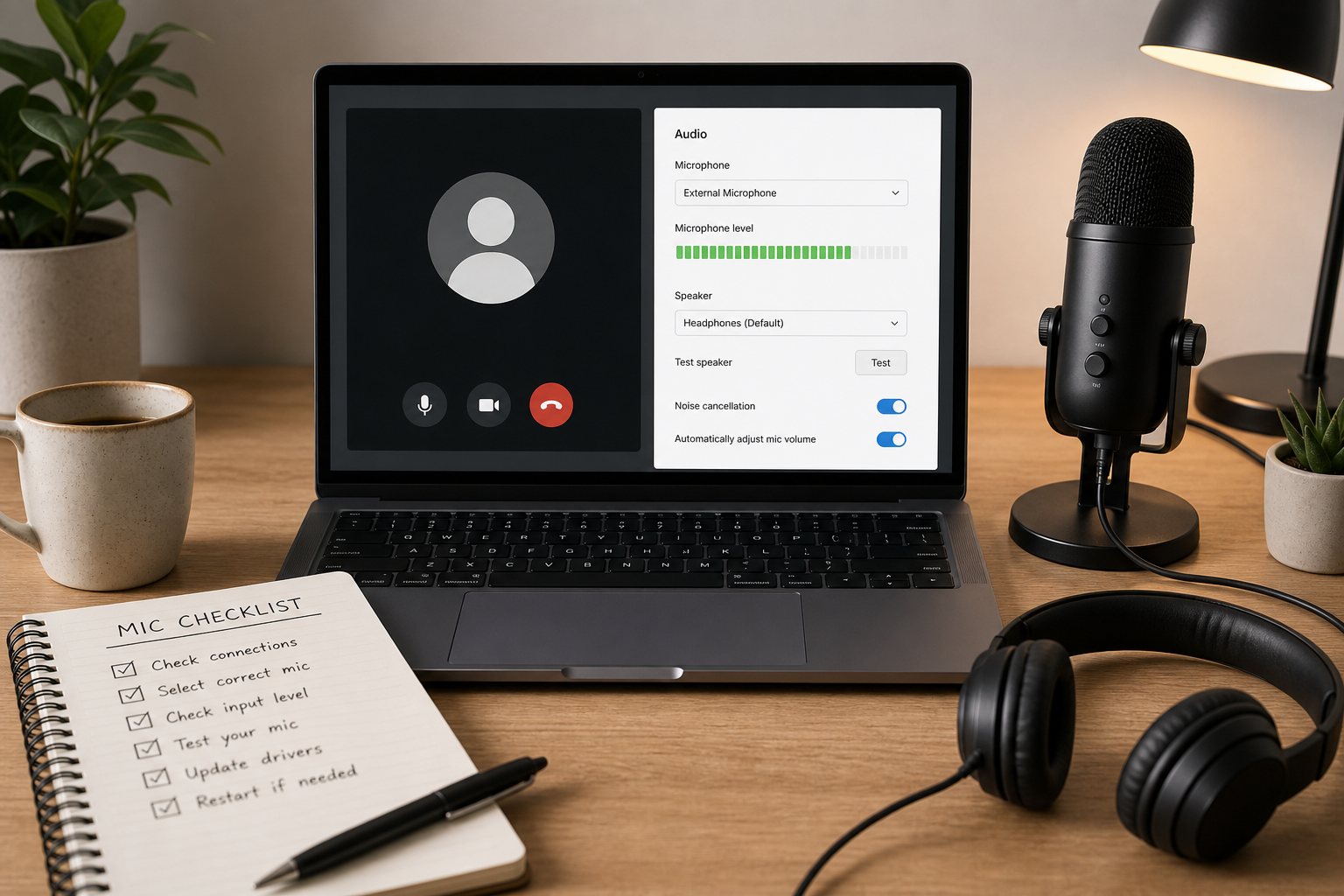
Open the active meeting, then go to Settings and Audio. Confirm that the selected microphone matches the physical device the speaker is using. If multiple USB audio devices are attached, Meet can lock onto a disconnected source after dock changes.
Run this exact sequence:
- Ask the speaker to speak continuously for ten seconds.
- Watch the Meet input level meter while switching input devices one by one.
- Stop when the meter responds to live voice.
- Keep speaker output on a separate known device if possible.
Operator tip: if the presenter uses a docking station, unplug and replug once after selecting the mic. Device enumeration can reorder after sleep or hot swap events.
Google documentation for device settings in Meet is here: Use your camera and microphone in Google Meet (opens new window).
If your team rotates between meeting apps, publish one shared quick key map so hosts can mute, unmute, and verify devices without hunting through menus. This helps when operators shift context mid day: Teams keyboard shortcuts for meeting hosts (opens new window).
# Step 2: Validate browser permission for microphone access
When Google Meet shows a blocked microphone icon, the browser has denied site level access. Fixing device settings alone will not recover audio until permission is restored.
For Chrome and Edge:
- Open site controls from the address bar while on meet.google.com.
- Set Microphone to Allow.
- Confirm the selected mic in browser settings matches the meeting device.
- Reload the meeting tab.
For Firefox:
- Check the permission prompt state in the URL bar.
- Remove prior block decision if present.
- Re grant microphone access and reload.
Chrome permission reference: Change site settings permissions in Chrome (opens new window).
A common operator error is fixing permission in one browser profile while the presenter is in a different profile. If uncertain, test in a clean guest profile first. If audio works there, the issue is profile specific, usually extension behavior or policy override.
# Step 3: Check OS privacy controls and device exclusivity
If the browser is allowed but the meter stays flat, verify operating system level permission and device lock behavior.
# macOS checks
In System Settings, go to Privacy and Security, then Microphone. Ensure the browser used for Meet is enabled. After changing this setting, fully quit and relaunch the browser. A tab refresh alone can leave stale permission state.
Apple reference: Control access to your microphone on Mac (opens new window).
# Windows checks
In Settings, review microphone privacy options for desktop apps and browser access. Then inspect advanced device properties for exclusive mode if enterprise audio tools are installed.
Microsoft reference: Manage app permissions for your microphone in Windows (opens new window).
If a call recording agent or voice processing app has grabbed exclusive control, Meet may show an input device but receive no usable audio frames. Disable exclusivity for the incident call, then restore policy after the meeting.
# Step 4: Isolate audio routing conflicts and virtual devices
Many recurring incidents come from stacked audio software. Teams running podcast tools, virtual mixers, or loopback drivers often expose several similarly named inputs. Presenters pick the wrong device under pressure.
Use this isolation checklist:
- Temporarily disable unused virtual inputs.
- Keep exactly one physical microphone enabled.
- Rejoin Meet and select that microphone explicitly.
- Run a thirty second recording in browser sound test.
- Re enable virtual devices one at a time after the call.
This approach narrows the conflict quickly and prevents the endless toggle loop that burns meeting time.
For host workflows where users switch between apps throughout the day, define one default profile for high stakes calls. Include approved input device, output device, and noise suppression setting. Your operators can revert to this baseline in seconds.
For mixed platform teams, this is similar to recovery patterns in other meeting failures, especially when role and settings drift across apps: Zoom Waiting Room settings operator runbook (opens new window).
# Step 5: Handle intermittent microphone dropouts
If audio works, then drops after a few minutes, focus on transport stability and endpoint load.
# First line triage
- Switch Bluetooth headset to wired USB headset if available.
- Close browser tabs with active media capture.
- Stop background sync and uploads.
- Disable non essential audio enhancement tools.
- Rejoin the call once after the environment is simplified.
# Second line triage
- Check CPU and memory pressure on the presenter endpoint.
- Confirm network jitter and packet loss at the host location.
- Verify no VPN path change occurred during the meeting.
Google publishes guidance for Meet quality diagnostics and troubleshooting: Troubleshoot Google Meet quality (opens new window).
If repeated dropouts track to one endpoint across different platforms, treat it as device and network health first. Platform switching alone will rarely resolve it. This pattern often appears alongside broader call quality alerts: Your internet connection is unstable in meetings (opens new window).
# Decision checklist for live incident ownership
Use this quick ownership model to avoid over troubleshooting during active meetings.
- If no one can hear the host and meter is flat, assign device owner to local permission path.
- If meter moves but remote participants hear nothing, assign operator to routing and virtual device path.
- If audio cuts for all participants at intervals, assign network owner to transport checks.
- If fix exceeds ten minutes in a high priority meeting, switch to backup host and continue diagnosis offline.
This checklist keeps meetings moving while still producing a useful root cause trail.
# Concrete incident scenario: executive review, two minute recovery
Scenario: five minutes before a monthly executive review, the presenter joins Meet and no one can hear them. Video is fine, chat works, and they can hear others.
What the operator did:
- Confirmed Meet input device. Meter was flat.
- Checked browser permission. It was already allowed.
- Opened macOS microphone privacy. Browser permission had been toggled off after a recent security update.
- Re enabled permission, fully restarted browser, rejoined meeting.
- Verified meter response and ran a ten second voice check in meeting.
Elapsed time: about two minutes once the workflow stayed linear.
Non obvious tip that helped: the operator skipped extension debugging because the local meter was flat. That symptom ruled out most in tab processing issues and pointed directly to OS permission state.
# Build a prevention baseline for recurring host teams
The fastest future fix is the one you never need. Preventive setup reduces repeat incidents.
Create a host baseline document with:
- Approved browser and version channel.
- Preferred wired microphone model.
- Default Meet audio settings.
- One backup input device.
- Pre meeting device check step in calendar template.
Then assign one operator owned preflight for important meetings. A sixty second preflight catches most silent mic failures before participants join.
If your team runs complex multi app meeting operations, keep one control surface for mute and device actions so hosts do fewer context switches in live calls. MuteDeck can help standardize those control patterns across Zoom, Teams, and Meet in one workflow.
# What to do after the incident
Capture the root cause in a short log entry:
- Symptom observed.
- Failing layer found.
- Fix applied.
- Time to recovery.
- Preventive action assigned.
Over a month, these logs show where your meeting stack is fragile. You can then target policy, hardware refresh, or training where failures cluster.
When you treat microphone incidents as repeatable operations work, recovery time drops and meeting confidence improves. Use this runbook as your default path the next time Google Meet microphone not working appears in chat three minutes before a critical call.